Home Assistant 卡片分享(十) 打造小米智能鱼缸专属控制卡片
最近入手了小米智能鱼缸(米家智能鱼缸),接入 Home Assistant后发现默认的控制界面总是不够直观——要么太零散,要么缺少视觉反馈。今天给大家分享一个我自制的高颜值、功能合一的鱼缸控制卡片。
这个卡片采用了时下流行的毛玻璃(Glassmorphism)风格,结合 button-card 强大的自定义能力,做了一排四键的鱼缸控制面板,效果非常满意。今天把这套配置分享出来,希望能给同样养鱼又玩HA的朋友一些灵感。
🎨卡片预览
四个卡片横向排列,分别控制:
鱼缸灯:点击开关,长按进入颜色/亮度调节。
水泵:点击启停,长按弹出档位选择。
喂食:点击一次增加1次喂食计数,长按手动输入次数。
水温:显示实时温度,图标根据温度区间变色,异常时闪烁提醒。
卡片采用半透明毛玻璃背景,每个按钮都有细腻的点击动效,图标状态反馈极其明显。
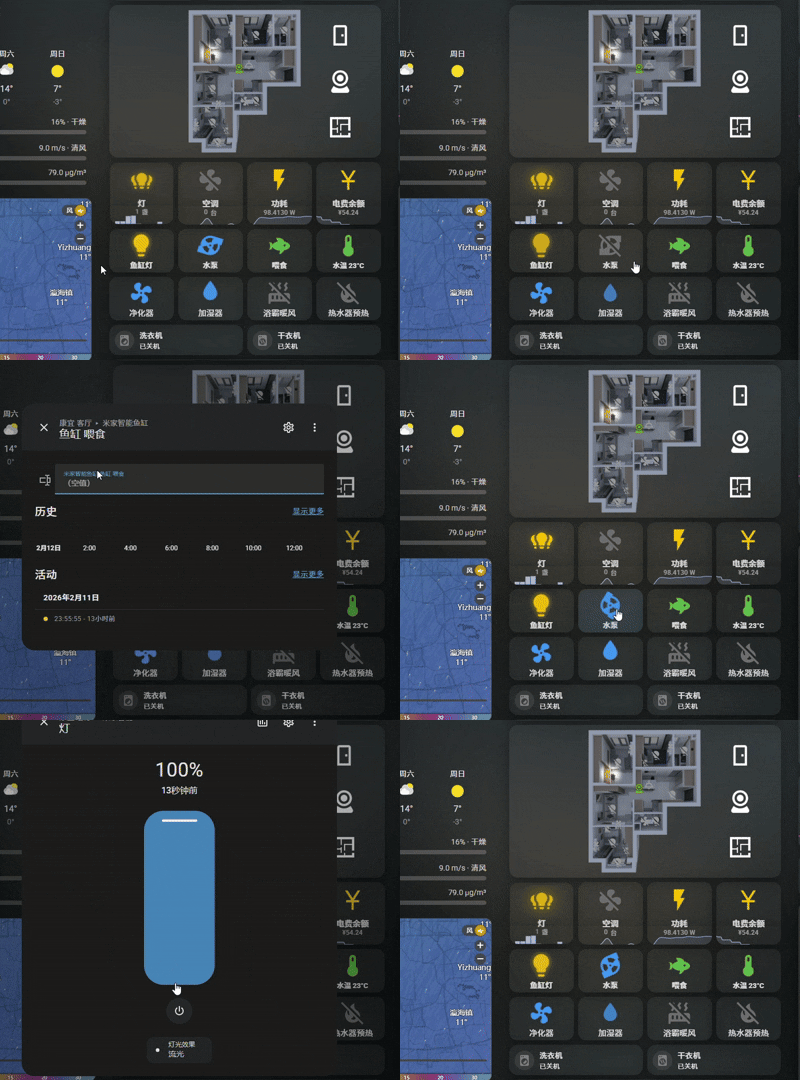
卡片详解
1. 全局样式:毛玻璃 + 无边框
通过顶层的 card_mod 实现全卡片组的视觉统一:
yaml
card_mod:
  style: |
    :host {
      --ha-card-background: rgba(255,255,255,0.05);
      --ha-card-border-width: 0;
      --ha-card-border-radius: 16px;
      --ha-card-box-shadow: 0 8px 32px 0 rgba(0,0,0,0.37);
      --backdrop-filter: blur(10px);
    }
    ha-card {
      background: var(--ha-card-background);
      border: none !important;
      border-radius: var(--ha-card-border-radius);
      box-shadow: var(--ha-card-box-shadow);
      backdrop-filter: var(--backdrop-filter);
    }
这组样式会让卡片自带玻璃质感,且完美适配深色/浅色主题。
2. 鱼缸灯按钮
yaml
- type: custom:button-card
  entity: light.hfjh_cn_2026042710_m100_s_15_light
  name: 鱼缸灯
  show_state: false
  tap_action:
    action: toggle
  hold_action:
    action: more-info
  icon: |
    [[[ return entity.state === 'on' ? 'mdi:lightbulb' : 'mdi:lightbulb-off'; ]]]
  styles:
    icon:
      - color: |
          [[[ return entity.state === 'on' ? '#FFC107' : 'var(--disabled-text-color)'; ]]]
      - filter: |
          [[[ return entity.state === 'on' ? 'drop-shadow(0 0 5px rgba(255, 193, 7, 0.8))' : 'none'; ]]]
      - animation: |
          [[[ return entity.state === 'on' ? 'light-pulse 2s ease-in-out infinite' : 'none'; ]]]
  card_mod:
    style: |
      ha-card { border-radius: 15px; height: 80px; }
      @keyframes light-pulse {
        0%,100% { transform: scale(1); opacity: 1; }
        50% { transform: scale(1.1); opacity: 0.8; }
}亮点:
开灯时图标呈现黄色光晕 + 呼吸脉动效果。
长按直接弹出灯的原生控制对话框,支持调节亮度和颜色(如果灯支持)。
3. 水泵按钮(重点:长按弹出档位选择)
水泵是鱼缸的核心设备,必须能快速调节流量。Home Assistant 中水泵开关和挡位选择器是两个独立实体,如何在一个按钮上优雅地集成?
yaml
- type: custom:button-card
  entity: switch.hfjh_cn_2026042710_m100_water_pump_p_2_2
  name: 水泵
  tap_action:
    action: toggle
  hold_action:
    action: more-info
    entity: select.hfjh_cn_2026042710_m100_pump_flux_p_2_3   # 👈 关键
  icon: |
    [[[ return entity.state === 'on' ? 'mdi:pump' : 'mdi:pump-off'; ]]]
  styles:
    icon:
      - color: |
          [[[ return entity.state === 'on' ? '#2196F3' : 'var(--disabled-text-color)'; ]]]
      - animation: |
          [[[ return entity.state === 'on' ? 'spin 2s linear infinite' : 'none'; ]]]
  card_mod:
    style: |
      @keyframes spin {
        0% { transform: rotate(0deg); }
        100% { transform: rotate(360deg); }
}技巧:hold_action 中直接指定 entity: select.xxx,长按时会绕过当前卡片实体,直接打开挡位选择器的 more-info 对话框。这是 button-card 特有的简洁语法,实测非常稳定。
水泵开启时,图标持续旋转,蓝色动感十足。
2026.3.9更新
今天发现挡位不知道什么时候由原来的3挡变成了2挡,但是我不知道,所以优化了一下。按照温度按钮的逻辑,在 name 中使用模板获取关联的 select 实体状态,并根据水泵开关状态动态显示档位信息。同时保留原有的图标、颜色、动画和交互。
以下是修改后的水泵卡片配置:
yaml
  - type: custom:button-card
    show_name: true
    show_icon: true
    entity: switch.hfjh_cn_2026042710_m100_water_pump_p_2_2
    name: |
      [[[
        var pumpState = entity.state;
        var gear = states['select.hfjh_cn_2026042710_m100_pump_flux_p_2_3'].state;
        if (pumpState === 'on') {
          return '水泵 ' + gear;
        } else {
          return '水泵';
        }
      ]]]
    show_state: false
    tap_action:
      action: toggle
    hold_action:
      action: more-info
      entity: select.hfjh_cn_2026042710_m100_pump_flux_p_2_3
    icon: |
      [[[
        if (entity.state === 'on') return 'mdi:pump';
        else return 'mdi:pump-off';
      ]]]
    styles:
      name:
        - font-size: 14px
        - font-weight: bold
      icon:
        - color: |
            [[[
              if (entity.state === 'on') return '#2196F3';
              else return 'var(--disabled-text-color)';
            ]]]
        - animation: |
            [[[
              if (entity.state === 'on') return 'spin 2s linear infinite';
              else return 'none';
            ]]]
    card_mod:
      style: |
        ha-card {
          border-radius: 15px;
          height: 80px;
        }
        @keyframes spin {
          0% { transform: rotate(0deg); }
          100% { transform: rotate(360deg); }
        }
主要改动说明:
动态名称:
name字段改为 JavaScript 模板,从states对象中读取select.hfjh_cn_2026042710_m100_pump_flux_p_2_3的当前状态(档位),并结合水泵开关状态显示:水泵开启时:显示“水泵 挡位值”(例如“水泵 三挡”)
水泵关闭时:显示“水泵”
保持原有交互:
tap_action仍为开关切换,hold_action指向档位选择实体,方便长按调整挡位。保留样式和动画:图标颜色、旋转动画、卡片尺寸等均未改变,与修改前一致。
这样修改后,水泵卡片就能像温度卡片一样,直观地显示当前挡位,同时保留所有原有功能。
4. 喂食按钮(一键加次数 + 动画反馈)
小米鱼缸的喂食实体是一个 text,可写入 "1"、"2"、"3" 表示出粮次数。我设计为:
单击:直接设置次数为 1 并触发一次出粮(通过
text.set_value服务)。长按:打开 more-info 界面,可以手动输入 1/2/3。
yaml
- type: custom:button-card
  entity: text.hfjh_cn_2026042710_m100_pet_food_out_a_2_1
  name: 喂食
  tap_action:
    action: perform-action
    perform_action: text.set_value
    target:
      entity_id: text.hfjh_cn_2026042710_m100_pet_food_out_a_2_1
    data:
      value: "1"
    animation_card: |
      [[[
        const animation_speed_ms = 900;
        const animation = `card_bounce ${animation_speed_ms}ms cubic-bezier(0.22, 1, 0.36, 1)`;
        this.shadowRoot.getElementById("card").style.animation = animation;
        window.setTimeout(() => {
          this.shadowRoot.getElementById("card").style.animation = "none";
        }, animation_speed_ms)
      ]]]
  hold_action:
    action: more-info
  icon: mdi:fish
  styles:
    icon:
      - color: "#4CAF50"   # 常亮绿色,代表待命状态
  card_mod:
    style: |
      @keyframes card_bounce {
        0% { transform: scale(1); }
        15% { transform: scale(0.9); }
        25% { transform: scale(1); }
        30% { transform: scale(0.98); }
        100% { transform: scale(1); }
}加分项:animation_card 是 button-card 提供的一个特殊回调,可以在动作执行后播放一段 CSS 动画。这里我让它执行“弹跳”效果,点击后卡片会轻微震动,给予明确的操作反馈。
如果你已经有喂食自动化,也可以把 tap_action 改为触发自动化,更加灵活。
5. 水温按钮(动态名称 + 阈值变色)
水温传感器直接显示数值和单位:
yaml
- type: custom:button-card
  entity: sensor.hfjh_cn_2026042710_m100_temperature_p_2_4
  name: |
    [[[ return '水温 ' + entity.state + '°C'; ]]]
  show_state: false
  tap_action:
    action: more-info
  icon: mdi:thermometer
  styles:
    name:
      - font-size: 13px
      - font-weight: bold
    icon:
      - color: |
          [[[
            var value = Number(entity.state);
            if (value <= 20) return '#2196F3';  /* 蓝 */
            if (value <= 28) return '#4CAF50';  /* 绿 */
            return '#F44336';                   /* 红 */
          ]]]
      - animation: |
          [[[
            var value = Number(entity.state);
            if (value < 20 || value > 29) return 'blink 2s ease-in-out infinite';
            else return 'none';
          ]]]
  card_mod:
    style: |
      @keyframes blink {
        0%,100% { opacity: 1; }
        50% { opacity: 0.6; }
}亮点:
图标颜色:低温蓝、适温绿、高温红。
当水温低于 20°C 或高于 29°C 时,图标会缓慢闪烁,起到警示作用。
完整 YAML 代码(一键复制)
将以下代码粘贴到 Lovelace 仪表盘的 手动卡片 编辑器中,修改实体 ID 为你自己的鱼缸实体即可使用。
yaml
type: horizontal-stack
cards:
  - type: custom:button-card
    show_name: true
    show_icon: true
    entity: light.hfjh_cn_2026042710_m100_s_15_light
    name: 鱼缸灯
    show_state: false
    tap_action:
      action: toggle
    hold_action:
      action: more-info
    icon: |
      [[[
        if (entity.state === 'on') return 'mdi:lightbulb';
        else return 'mdi:lightbulb-off';
      ]]]
    styles:
      name:
        - font-size: 14px
        - font-weight: bold
      icon:
        - color: |
            [[[
              if (entity.state === 'on') return '#FFC107';
              else return 'var(--disabled-text-color)';
            ]]]
        - filter: |
            [[[
              if (entity.state === 'on') return 'drop-shadow(0 0 5px rgba(255, 193, 7, 0.8))';
              else return 'none';
            ]]]
        - animation: |
            [[[
              if (entity.state === 'on') return 'light-pulse 2s ease-in-out infinite';
              else return 'none';
            ]]]
    card_mod:
      style: |
        ha-card {
          border-radius: 15px;
          height: 80px;
        }
        @keyframes light-pulse {
          0%, 100% { transform: scale(1); opacity: 1; }
          50% { transform: scale(1.1); opacity: 0.8; }
        }

  - type: custom:button-card
    show_name: true
    show_icon: true
    entity: switch.hfjh_cn_2026042710_m100_water_pump_p_2_2
    name: 水泵
    show_state: false
    tap_action:
      action: toggle
    hold_action:
      action: more-info
      entity: select.hfjh_cn_2026042710_m100_pump_flux_p_2_3
    icon: |
      [[[
        if (entity.state === 'on') return 'mdi:pump';
        else return 'mdi:pump-off';
      ]]]
    styles:
      name:
        - font-size: 14px
        - font-weight: bold
      icon:
        - color: |
            [[[
              if (entity.state === 'on') return '#2196F3';
              else return 'var(--disabled-text-color)';
            ]]]
        - animation: |
            [[[
              if (entity.state === 'on') return 'spin 2s linear infinite';
              else return 'none';
            ]]]
    card_mod:
      style: |
        ha-card {
          border-radius: 15px;
          height: 80px;
        }
        @keyframes spin {
          0% { transform: rotate(0deg); }
          100% { transform: rotate(360deg); }
        }

  - type: custom:button-card
    show_name: true
    show_icon: true
    entity: text.hfjh_cn_2026042710_m100_pet_food_out_a_2_1
    name: 喂食
    show_state: false
    tap_action:
      action: perform-action
      perform_action: text.set_value
      target:
        entity_id: text.hfjh_cn_2026042710_m100_pet_food_out_a_2_1
      data:
        value: "1"
      animation_card: |
        [[[
          const animation_speed_ms = 900;
          const animation = `card_bounce ${animation_speed_ms}ms cubic-bezier(0.22, 1, 0.36, 1)`;
          this.shadowRoot.getElementById("card").style.animation = animation;
          window.setTimeout(() => {
            this.shadowRoot.getElementById("card").style.animation = "none";
          }, animation_speed_ms)
        ]]]
    hold_action:
      action: more-info
    icon: mdi:fish
    styles:
      name:
        - font-size: 14px
        - font-weight: bold
      icon:
        - color: "#4CAF50"
    card_mod:
      style: |
        ha-card {
          border-radius: 15px;
          height: 80px;
        }
        @keyframes card_bounce {
          0% { transform: scale(1); }
          15% { transform: scale(0.9); }
          25% { transform: scale(1); }
          30% { transform: scale(0.98); }
          100% { transform: scale(1); }
        }

  - type: custom:button-card
    show_name: true
    show_icon: true
    entity: sensor.hfjh_cn_2026042710_m100_temperature_p_2_4
    name: |
      [[[ return '水温 ' + entity.state + '°C'; ]]]
    show_state: false
    tap_action:
      action: more-info
    icon: mdi:thermometer
    styles:
      name:
        - font-size: 13px
        - font-weight: bold
      icon:
        - color: |
            [[[
              var value = Number(entity.state);
              if (value <= 20) return '#2196F3';
              if (value <= 28) return '#4CAF50';
              return '#F44336';
            ]]]
        - animation: |
            [[[
              var value = Number(entity.state);
              if (value < 20 || value > 29) return 'blink 2s ease-in-out infinite';
              else return 'none';
            ]]]
    card_mod:
      style: |
        ha-card {
          border-radius: 15px;
          height: 80px;
        }
        @keyframes blink {
          0%, 100% { opacity: 1; }
          50% { opacity: 0.6; }
        }

card_mod:
  style: |
    :host {
      --ha-card-background: rgba(255,255,255,0.05);
      --ha-card-border-width: 0;
      --ha-card-border-radius: 16px;
      --ha-card-box-shadow: 0 8px 32px 0 rgba(0,0,0,0.37);
      --backdrop-filter: blur(10px);
    }
    ha-card {
      background: var(--ha-card-background);
      border: none !important;
      border-radius: var(--ha-card-border-radius);
      box-shadow: var(--ha-card-box-shadow);
      backdrop-filter: var(--backdrop-filter);
    }
安装与依赖
必须插件:button-card
通过 HACS 安装,或在 GitHub 手动下载。
自定义扩展思路
增加水质传感器:按水温卡片模板,添加 TDS、pH 传感器,同样用颜色和闪烁做提醒。
喂食次数显示:可配合使用mini-graph-card插件
show_state: true,在图标下方显示当前设置的次数。集成过滤器状态:如果鱼缸有过滤器,可复制水泵卡片逻辑,长按调节档位。
深色模式优化:毛玻璃在浅色主题下需调整透明度,可将
rgba(255,255,255,0.05)改为rgba(0,0,0,0.05)等。
写在最后
这套卡片我从萌生想法到最终定型,经历了多次调整:长按目标写错语法、动画回调找不到元素、毛玻璃在浅色模式下过暗……但最终版本非常稳定,已经在我的鱼缸控制面板上运行了两个月。
Home Assistant 最大的乐趣就在于,你可以亲手把一堆零散的实体,组织成符合自己直觉的界面。希望这篇分享能给你一些灵感,也欢迎在评论区交流你的专属卡片设计。
Happy automating! 🐟